MCP Basics (STDIO Edition)
With JAXA Earth API for JavaScript, you can also develop an MCP (Model Context Protocol) for integration with generative AI. In this tutorial, we will build an STDIO-based MCP following the method described on the official site.
For this reason, it is assumed that the MCP server (the source code below) and the MCP client (such as Claude Desktop) run on the same machine.
The content of this guide has been verified to operate in the following environment (as of May 2026).
- Windows 11
- Node.js (v22.20.0)
- TypeScript (5.9.3)
- Claude Desktop (version 1.8555.0)
- Claude Free plan
Preparing the Source Code
Download the complete source code from the link below, extract the ZIP file, and save it to any folder (hereafter referred to as the "project root").
Complete MCP sample code (Japanese Version Only)
If a Japanese name is included somewhere in the path to the folder, problems may occur, so we
recommend using a folder with a shallow hierarchy and an English name, such as
C:\mcp-test.
The sample code includes the following files.
- package.json //Node.js file containing information about this package
- tsconfig.json //TypeScript configuration file
- src/
- index.ts //File required to run the MCP
- test.ts //File for module unit testing
- getElevationValue.ts //Function that returns elevation data values via JAXA Earth API
- getElevationImage.ts //Function that returns elevation data images via JAXA Earth API
- getCatalogList.ts //Function that returns the catalog files available via JAXA Earth API
- jaxa.earth.esm.js //JAXA Earth API module file
- jaxa.earth.esm.d.ts //Type definition file for the JAXA Earth API module
The index.ts file contains the code for operating as an MCP server. It defines the tool
descriptions and the details of the arguments accepted.
//Modules required to implement the MCP
import { McpServer } from "@modelcontextprotocol/sdk/server/mcp.js";
import { StdioServerTransport } from "@modelcontextprotocol/sdk/server/stdio.js";
import { z } from "zod";
//Each feature using JAXA Earth API
import getElevationValue from "./getElevationValue.js";
//(omitted)
//Register the available tools
server.registerTool(
"jaxa-earth-api-get-elevation-value",
{
//Describe this tool
description: `
Retrieves worldwide elevation data as numeric values using JAXA Earth API.
Specify the longitude and latitude of the location whose elevation value you want to know, and it returns the elevation (in meters) of that location.
For locations with no observation data, such as over the sea, it returns NaN or an error.
The source data is AW3D. For details about the dataset, please refer to
https://data.earth.jaxa.jp/en/datasets/#/id/JAXA.EORC_ALOS.PRISM_AW3D30.v3.2_global
.
`,
//Register the accepted arguments
inputSchema: {
longitude: z.number().describe("Specifies the longitude. (e.g., 135.5)"),
latitude: z.number().describe("Specifies the latitude. (e.g., 35.8)"),
},
},
//Function that accepts the arguments and runs
async ({ longitude, latitude }) => {
return {
content: [
{
type: "text",
//The resulting numeric value is returned as a string.
text: String(await getElevationValue(longitude, latitude)),
},
],
};
},
);
//(omitted)
Files such as getElevationValue.ts contain the concrete processing that uses JAXA Earth
API for JavaScript.
import * as je from "./jaxa.earth.esm.js";
//Returns the elevation at the specified latitude/longitude using AW3D data
export default async (lng: number, lat: number): Promise<number> => {
//Create a bbox of a narrow area of ±0.001 degrees centered on the specified latitude/longitude
const dl = 0.001;
const bbox: je.Bbox = [lng - dl, lat - dl, lng + dl, lat + dl];
//Specify AW3D
//https://data.earth.jaxa.jp/en/datasets/#/id/JAXA.EORC_ALOS.PRISM_AW3D30.v3.2_global
const collectionUrl = "https://s3.ap-northeast-1.wasabisys.com/je-pds/cog/v1/JAXA.EORC_ALOS.PRISM_AW3D30.v3.2_global/collection.json";
const band = "DSM";
//Retrieve the DataObject
//Image size is 100px square
const dataObject = await je.getDataObject({
collectionUrl,
band,
bbox,
width: 100,
height: 100,
});
//Perform statistics calculation (minimum, maximum, mean, etc.)
const stat = je.data.globalStat(dataObject);
//Return the mean value
return stat.mean;
};
Installing Other Required Modules
Open a terminal (command prompt) in the project root and run the following. According to the contents
of package.json, the required modules such as TypeScript and MCP will be installed.
npm i
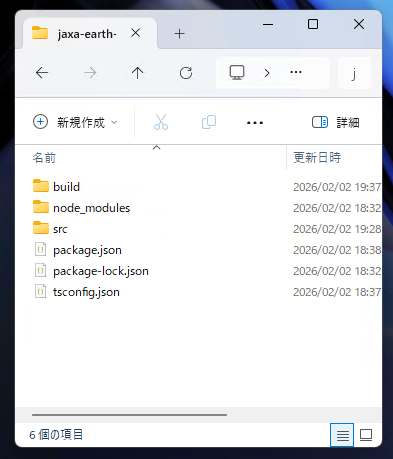
Compiling the TypeScript Files
Next, run the following in the terminal. The TypeScript files are compiled, and the JavaScript files
for actual execution are output to the ./build folder.
npm run build
Once the following files are in place, it is complete.
Running Module Unit Tests (Optional)
If you have changed the processing in files such as getElevationValue.ts, you can run
the unit tests written in test.ts with the following command.
npm run test
//This file is for unit testing the modules below.
//It is not used to run the MCP.
//Each feature using JAXA Earth API
import getElevationValue from "./getElevationValue.js";
import getElevationImage from "./getElevationImage.js";
import getCatalogList from "./getCatalogList.js";
//Node.js file saving feature
import fs from "node:fs";
//Displays the elevation on the console.
console.log(await getElevationValue(138.727, 35.361));
//Saves the image to test.png.
fs.writeFileSync("test.png", await getElevationImage(138.727, 35.361));
//Saves the response string to test.txt.
fs.writeFileSync("test.txt", await getCatalogList(), "utf8");
Because the modules are run on their own without going through Claude Desktop, you can verify operation efficiently.
If an SSL Certificate Error Occurs
JAXA Earth API for JavaScript communicates with the server where the data is stored in order to
retrieve the data.
If an SSL certificate error occurs due to the network conditions within your company or
organization, you can temporarily bypass SSL certificate verification by adding the following code
at the very beginning of index.ts and test.ts.
process.env["NODE_TLS_REJECT_UNAUTHORIZED"] = "0";
console.log() Cannot Be Used
Because the STDIO method uses STDIO for MCP communication, using console.log(), which
outputs to STDIO, causes an error.
Avoid using console.log(), or use console.error() instead.
See the
description on the official site here.
Registering the MCP in Claude Desktop
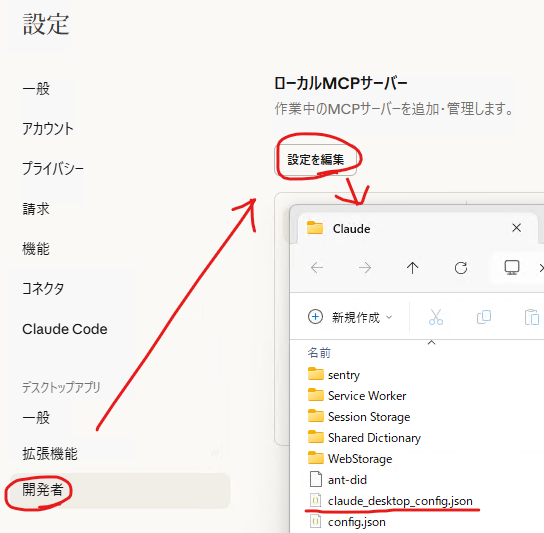
Open Claude Desktop, click Menu → File → Settings → Developer → "Edit
Config", and in the folder that opens, locate the claude_desktop_config.json file.
Write the following into this file.
{
"mcpServers": {
"jaxa-earth-api": {
"command": "node",
"args": [
"C:\\(PATH-TO-YOUR-PROJECT-ROOT)\\build\\index.js"
]
}
}
}
Specify index.js in the ./build folder that was output by compiling the
TypeScript files. Note that the path separator must be written doubled, as in \\.
Restarting Claude Desktop
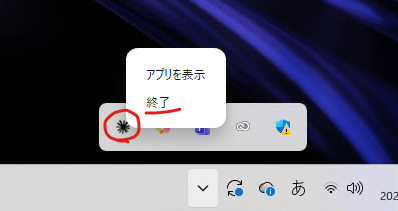
Restart Claude Desktop. Even after closing the window, it may remain resident in the taskbar, so quit it completely.
Opening Claude Desktop
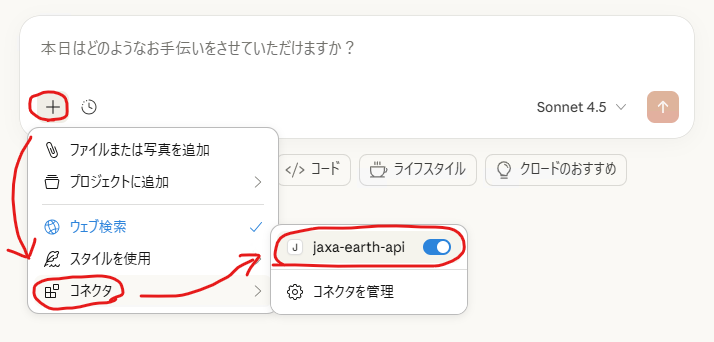
If items like the following appear, the load was successful.
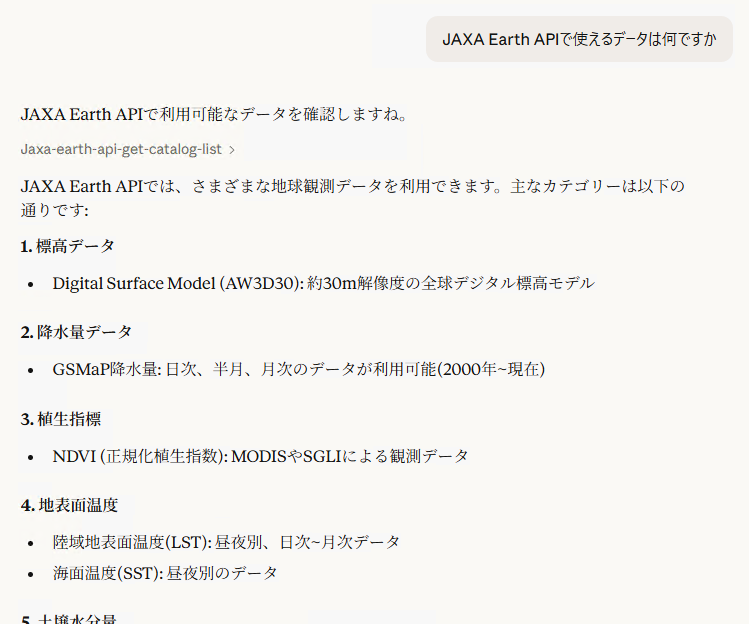
Asking Claude Desktop
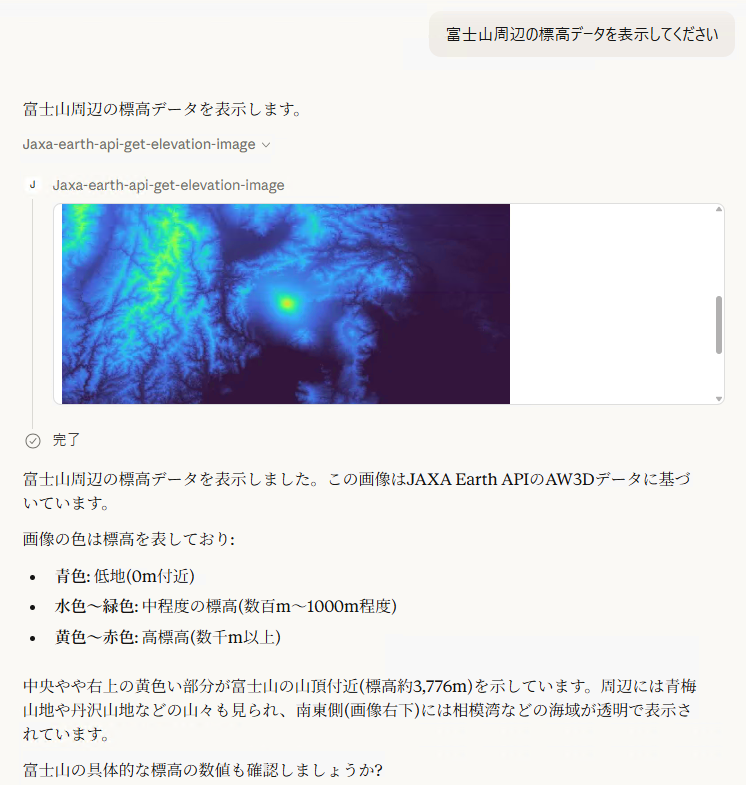
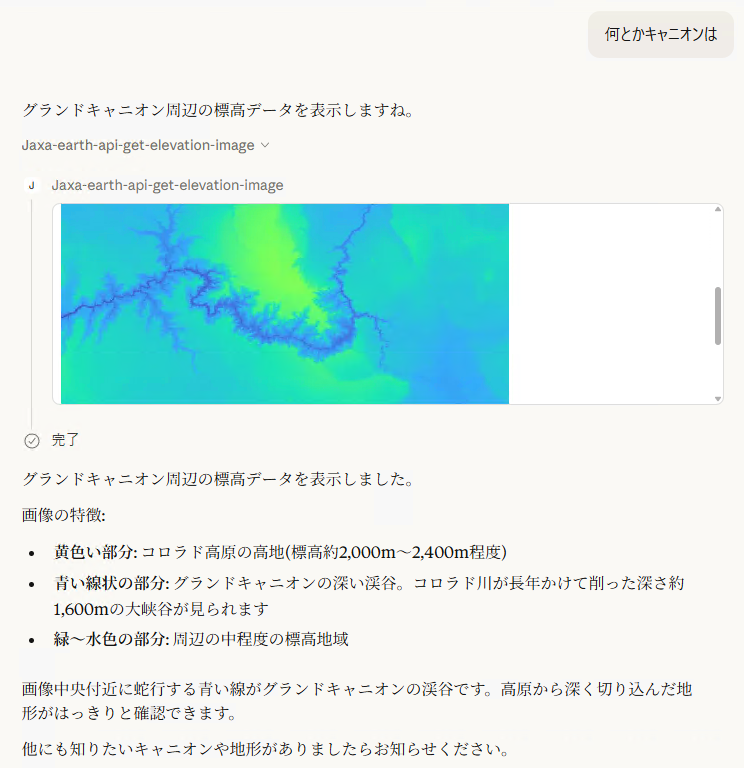
Try asking a question like the following. The generative AI will answer by making full use of JAXA Earth API data!
Because JAXA Earth API can also return PNG images, multimodal generative AI integration using images is possible.
Next: The Streamable HTTP Method
With the STDIO method, the MCP runs on the generative AI application, so the MCP service cannot be provided to a different machine. To use the MCP over a network, use the Streamable HTTP method.