Getting Data with Google Colab
Google Colab is an online platform where you can run Python code and check results without any local setup.
Set Up Google Colab Environment
Upload data to Google Drive
Google Colab requires a Google account and Google Drive for data access.
-
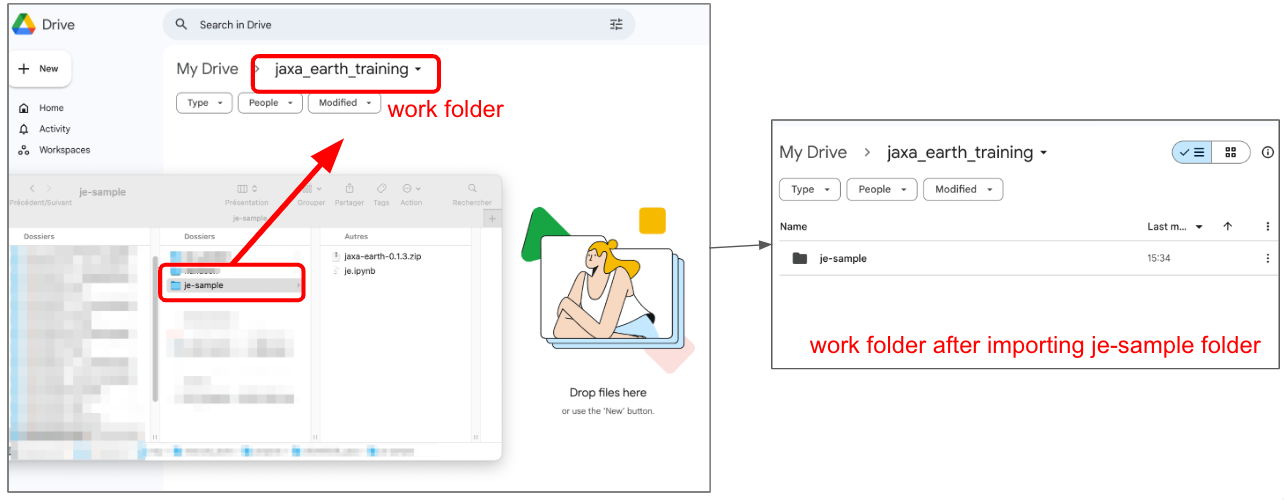
Download the sample data and extract it — it contains a
je-sampledirectory. -
In Google Drive, create a work folder and drag-and-drop the
je-samplefolder into it.
Load the notebook
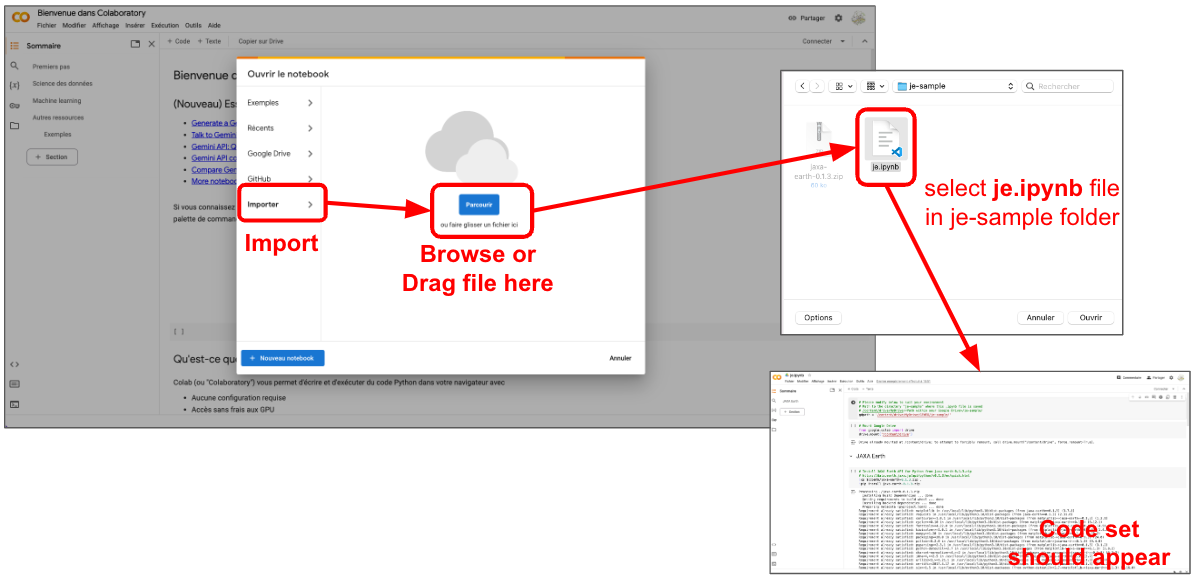
- Go to Google Colab.
- Import the
je.ipynbfile from your Google Drive — the code set will be displayed.
Mount Google Drive
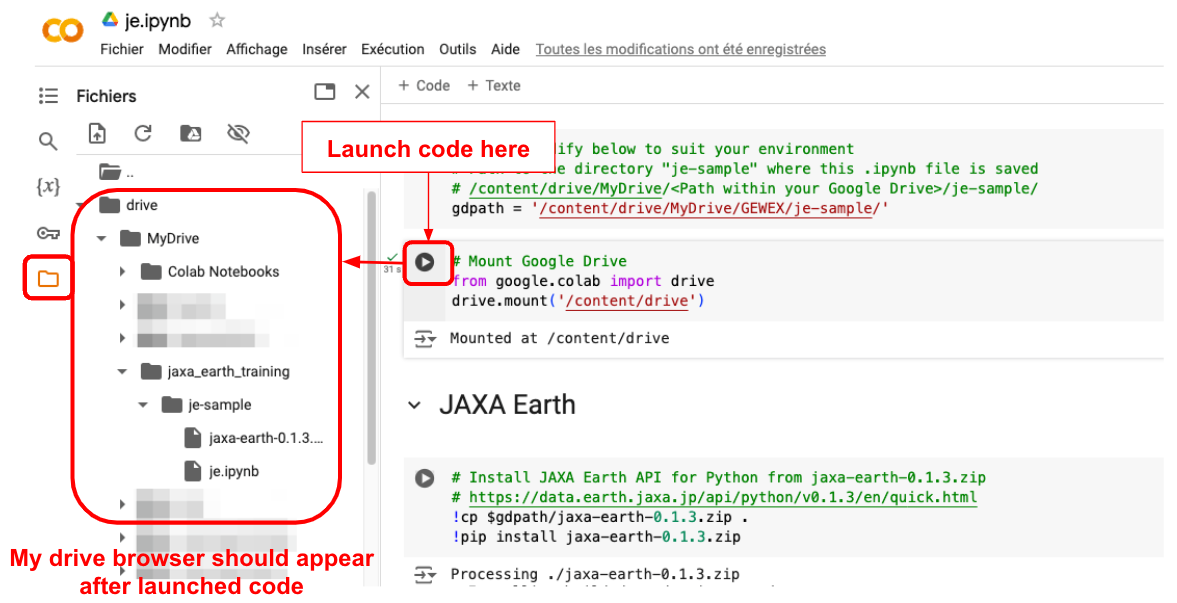
Run the Mount Google Drive code cell. A connection and access authorization to your Google account is required. Once launched, the browser panel on the left side shows the je-sample folder.
Set the directory path
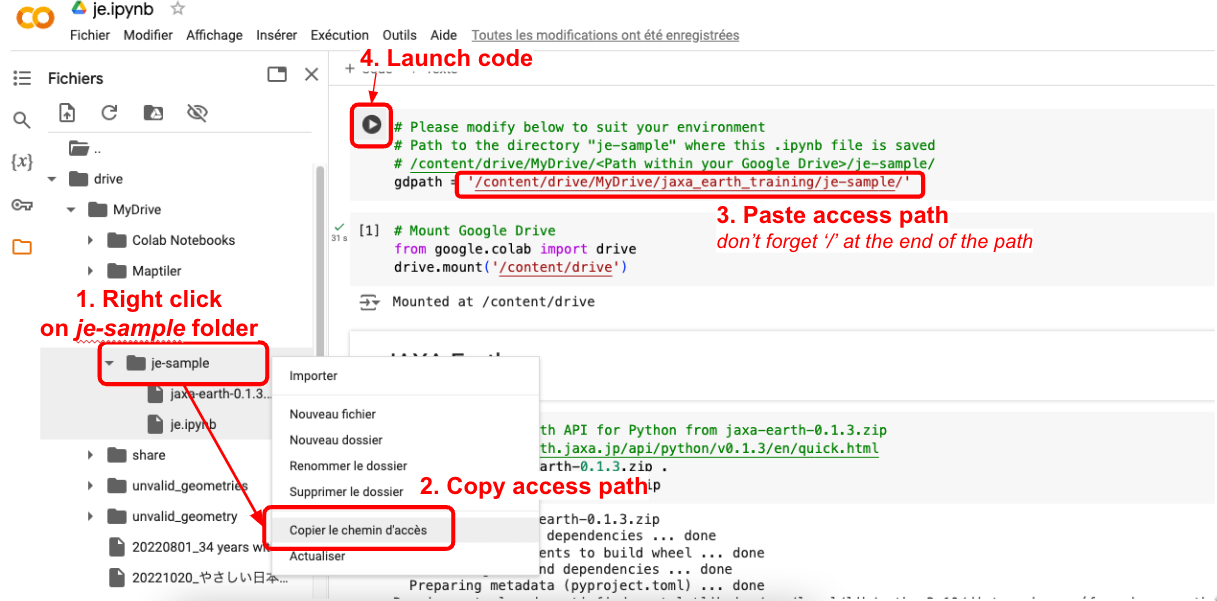
- On the browser panel, right-click the
je-samplefolder and copy its path. - Paste the path into the
gdpathvariable and run the cell.
Install JAXA Earth API for Python
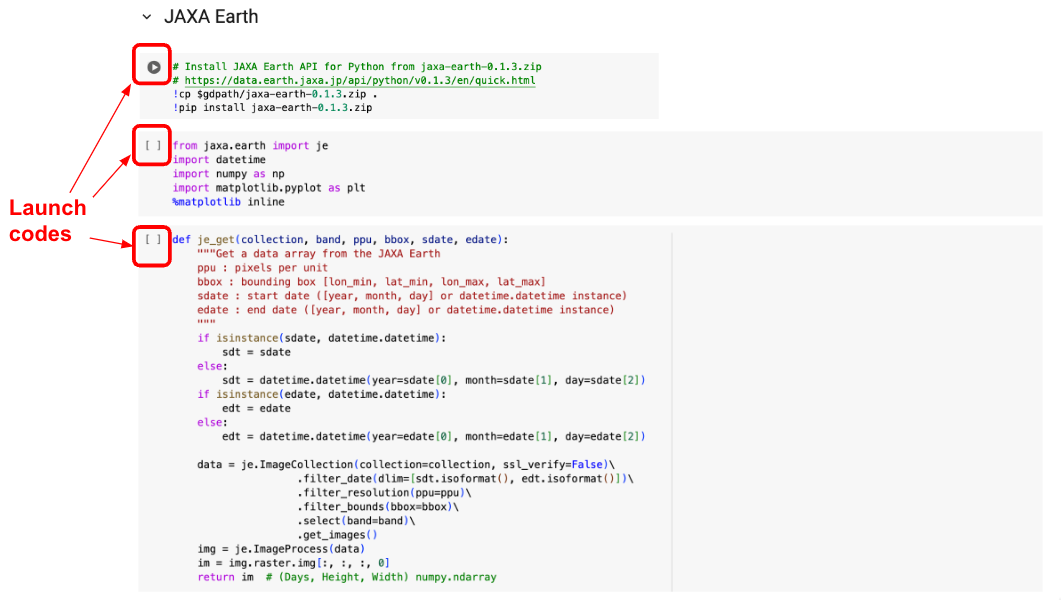
In the je-sample folder, the API package (jaxa-earth-0.1.3.zip) is provided.
Run the first three code cells:
- First cell — installs the zip file
- Second cell — imports libraries including the just-installed JAXA Earth library
- Third cell — defines a helper function to get data from JAXA Earth
The Google Colab environment is now ready.
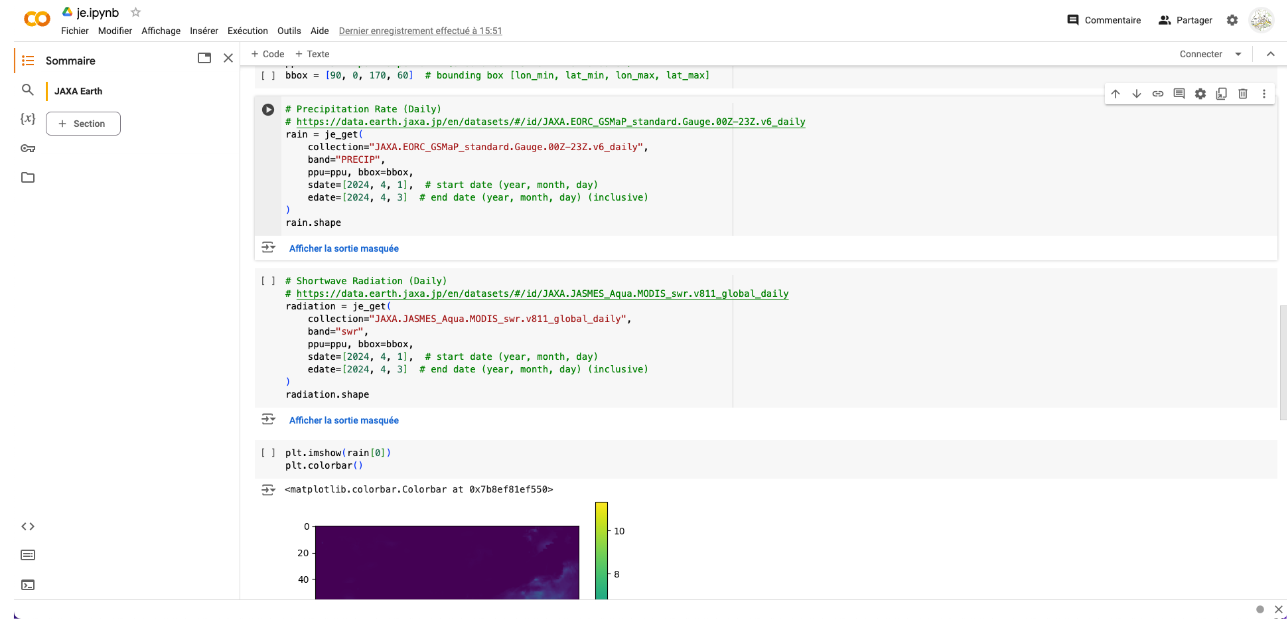
Get Precipitation Rate (Daily)
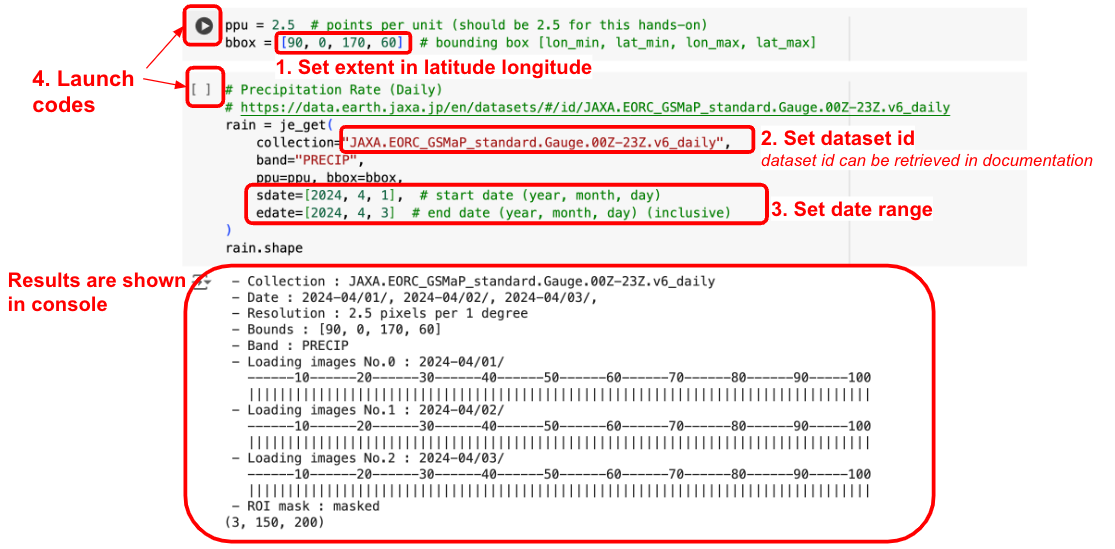
Data can be retrieved using the following parameters:
| Parameter | Description |
|---|---|
ppu |
Image resolution |
bbox |
Area of interest |
collection |
Target dataset ID |
sdate |
Start date |
edate |
End date |
Dataset details: https://data.earth.jaxa.jp/en/datasets/#/id/JAXA.EORC_GSMaP_standard.Gauge.00Z-23Z.v6_daily
Run the get-data code cell. The output data is stored as the rain variable.
To visualize the result, run the visualization code cell.
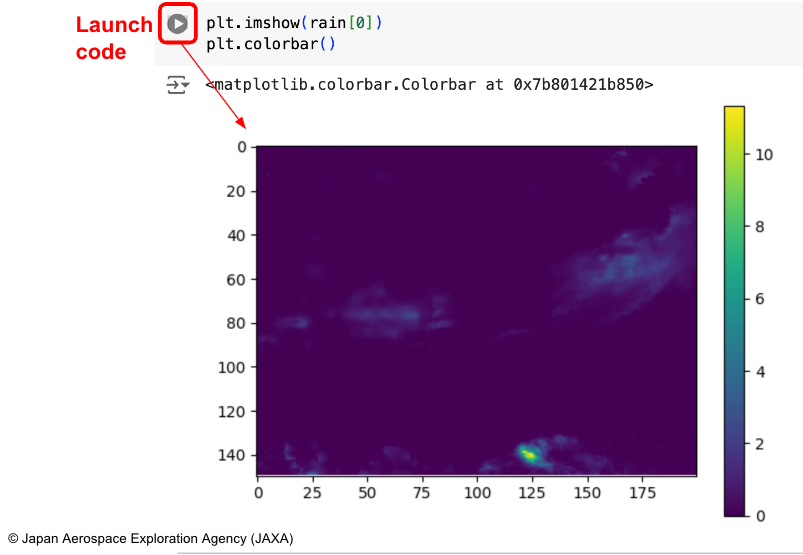
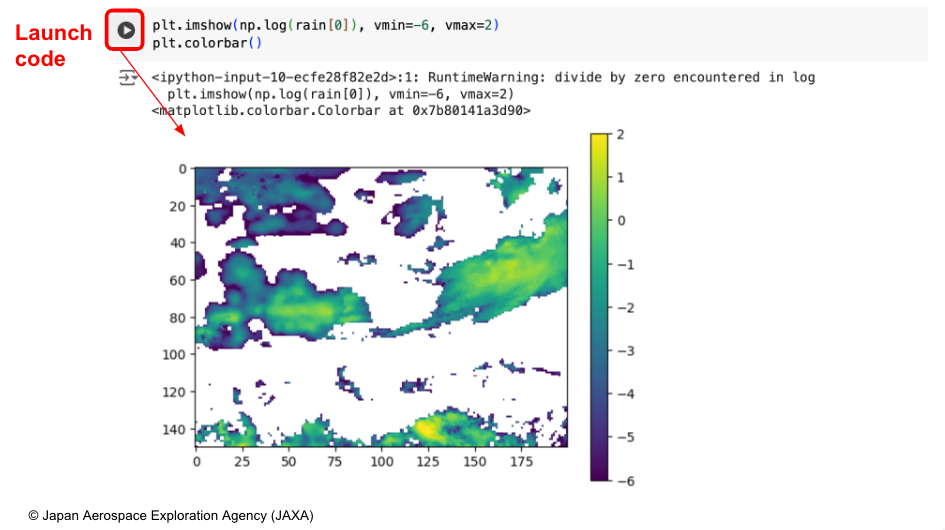
Since the color range may be difficult to see, you can adjust the clim range values (e.g., -6 to 2).
Get Shortwave Radiation (Daily)
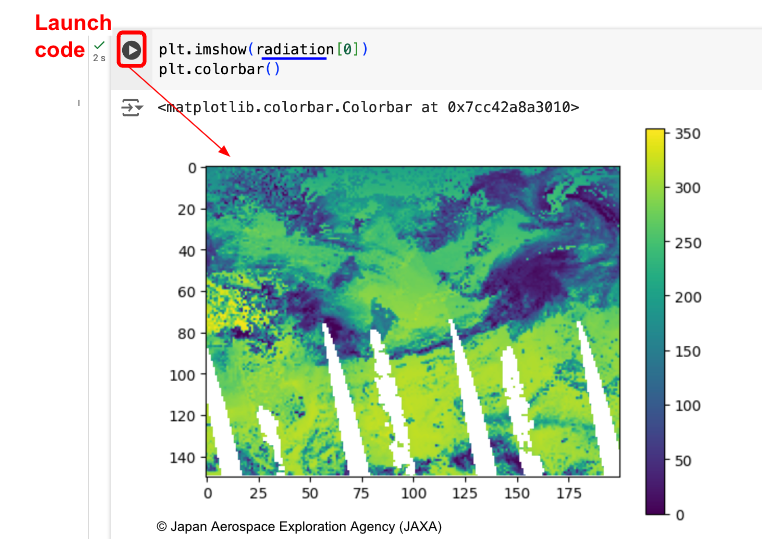
Shortwave radiation can be retrieved with the same code — only change the collection variable to the dataset ID.
Dataset details: https://data.earth.jaxa.jp/en/datasets/#/id/JAXA.JASMES_Aqua.MODIS_swr.v811_global_daily
- Extent and resolution can be changed by editing the
ppuandbboxvariables.
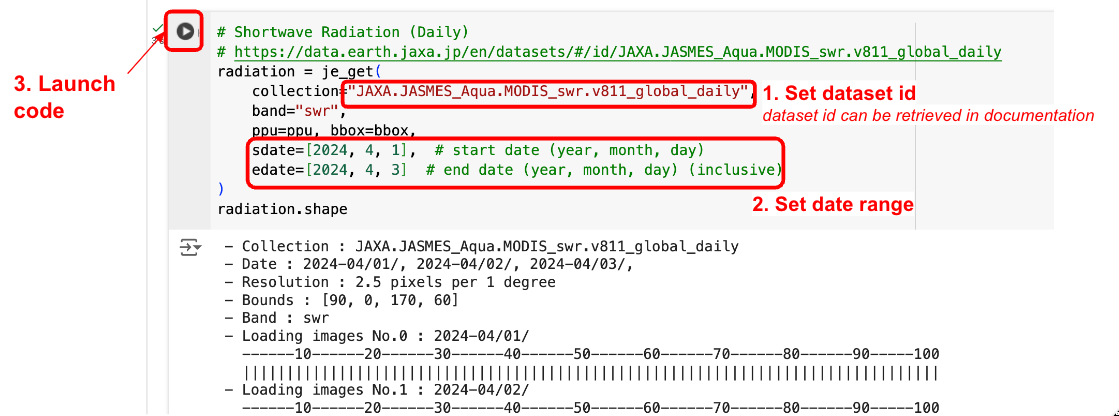
- To visualize, reuse the precipitation visualization code with the
radiationvariable.